Batch Processor
The Batch Processor lets a user build prescriptions for multiple fields at once using saved templates, rather than building each field’s prescription one at a time
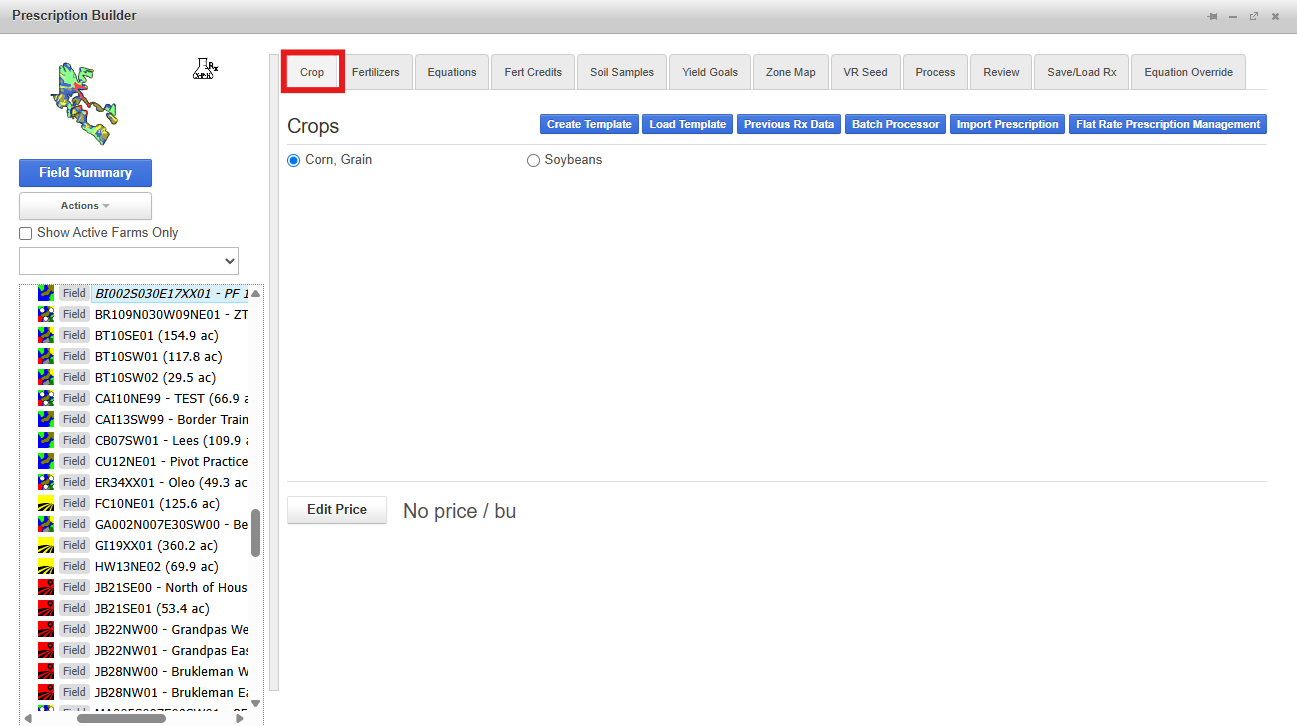
1. Open Prescription Builder and go to the Crop tab.
2. Click Batch Processor. A popup dialog will open.
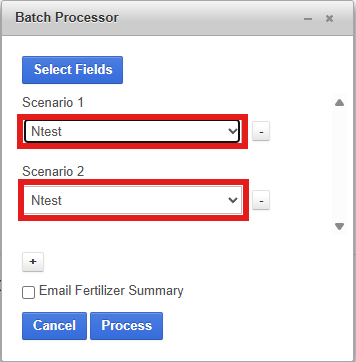
3. Select a template from the dropdown. These are previously saved Rx templates.
4. To run more than one template per field, click the + button to add additional template rows. (Optional)
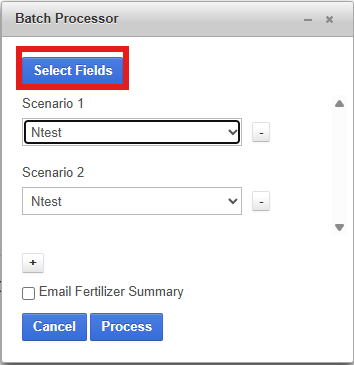
5. Click Select Fields. The profile tree for the selected grower will open with checkboxes. Check all the fields to be processed.
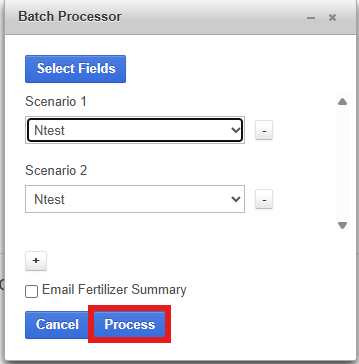
6. Check Email Fertilizer Summary to recieve an email with PDF summaries of all prescriptions once the batch finishes. (Optional)
7. Click Process. A soil sample selection screen will appear for each field, allowing a sample year to be chosen, If lab results have not yet been returned, select Await Results and the job will wait until they are available.