Create Blend/Solution
Create Blend/Solution combines multiple individual fertilizer products into one or two composite blends so the applicator can mix them together in the tank. The system automatically calculates the blended nutrient analysis (N-P-K label), density, and price.
1. Build the prescription through the normal tabs (Crop, Soil Samples, Equations, Yield Goals, Fertilizers).
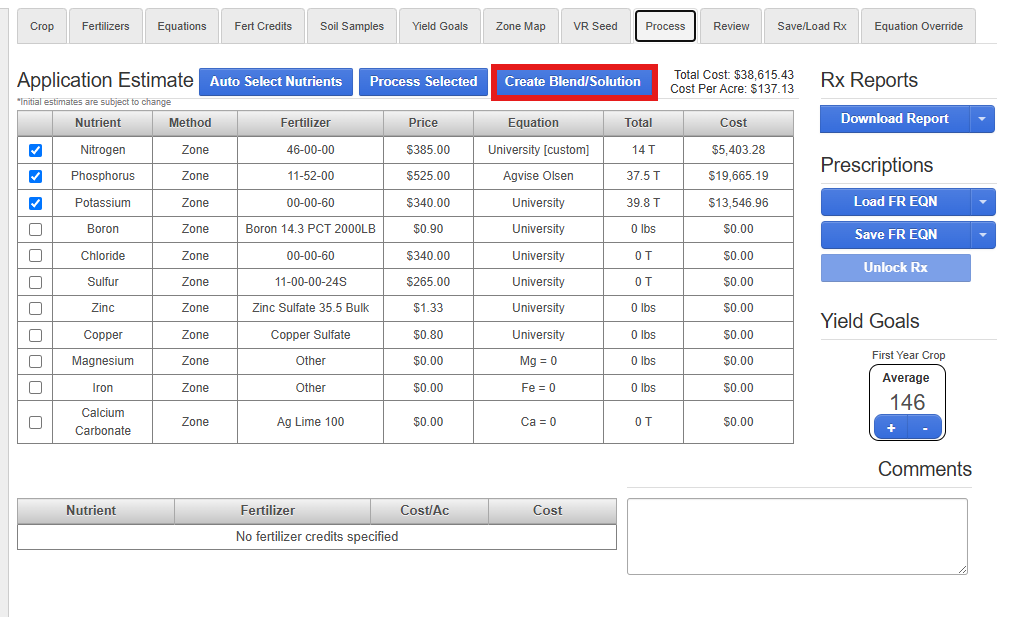
2. Go to the Process tab and click Create Blend/Solution.
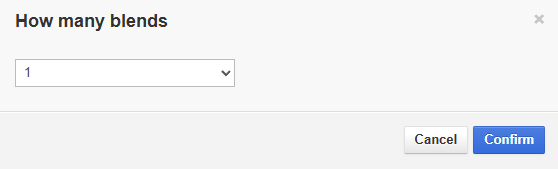
3. Choose how many blend. A prompt will ask for 1 Blend or 2 Blends. Choose 2 Blends if separate tank mixes are needed.
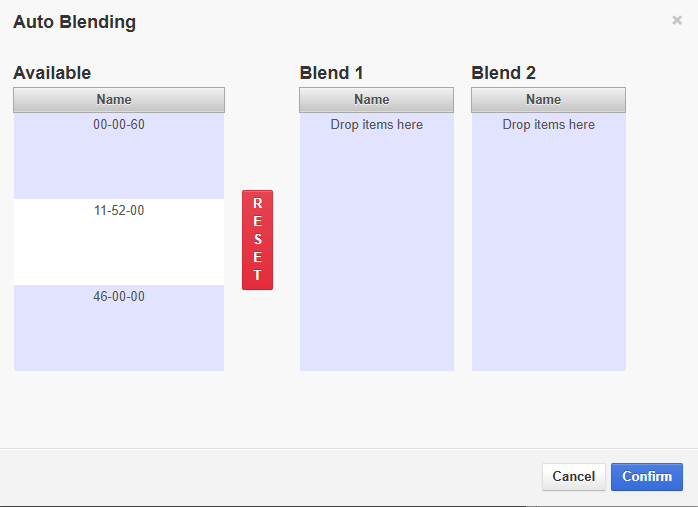
4. Drag and drop products. A modal will appear with three panels:
a. Available Products (left) - lists all the fertilizer products from the prescription.
b. Blend 1 (right, left column)
c. Blend 2 (right, right column) - only appears if 2 Blends was selected.
5. Click Confirm. The system calculates the blend by computing weighted averages of the sub-products’ nutrient values, density, and price based on their application rates.
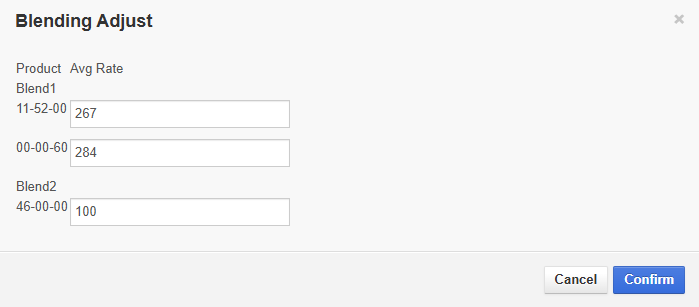
6. Adjust rates as needed. A Blending Adjust screen shows each product’s rate within the blend. Individual rates can be tweaked, then click Recalculate to update the blend. (Optional)
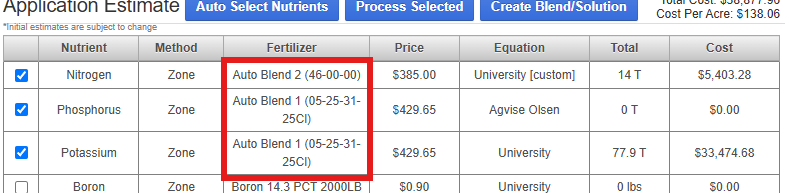
7. Click Confirm. The blend replaces the individual products in the prescription. In every fertilizer dropdown where one of the blended products was selected, it now shows as Auto Blend 1, with the actual nutrient analysis included in the name.